
All your admin links in one place
An account is optional. It stores your admin links for scheduling polls and surveys – encrypted in your browser before they reach our server.
Create accountLog inWhat an account gives you
- All admin links in one place instead of scattered messages
- Reopen polls and surveys conveniently
- Existing links can be added using the admin link
- After creating, save to your account with one click
Participants don’t need an account – only you, if you want one.
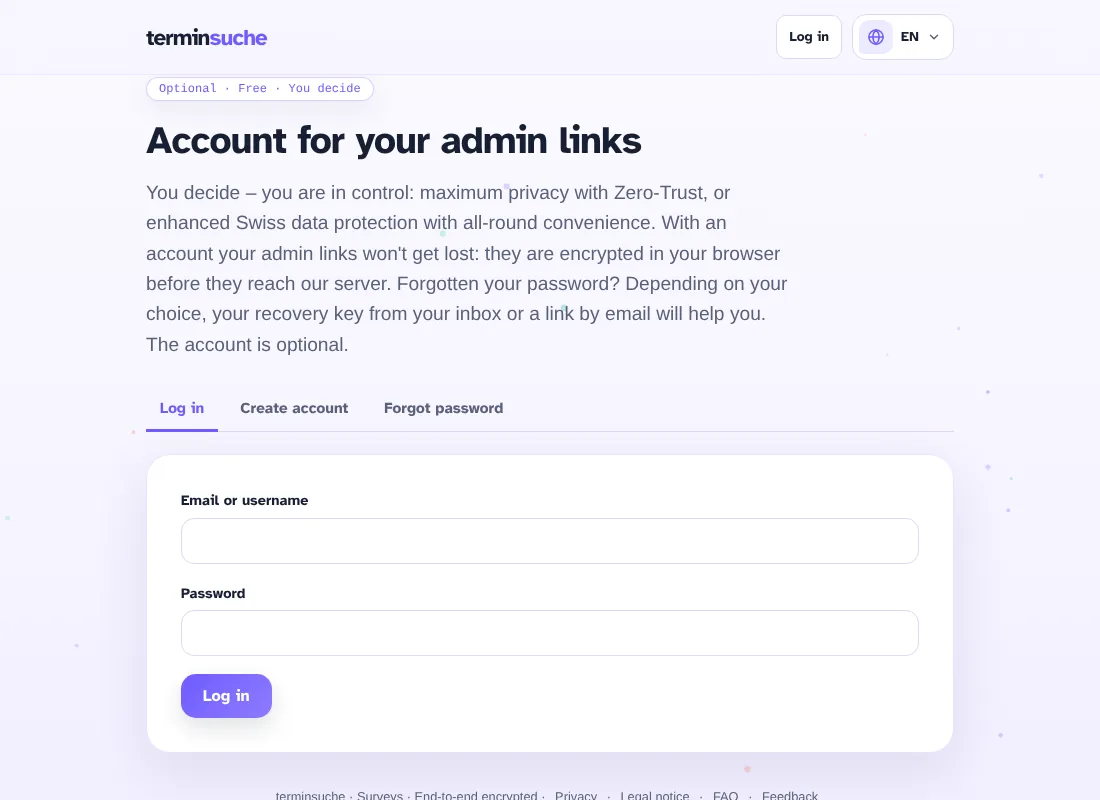
With or without email
With email (Comfort)
Log in with your email address. You receive your recovery key by email. Forgotten your password? Open the link in the email and set a new password.
Without email (maximum security)
Log in with a username. You note down the recovery key yourself, for example printed out or in a password manager. It never leaves your browser.
Organisation: teams and folders
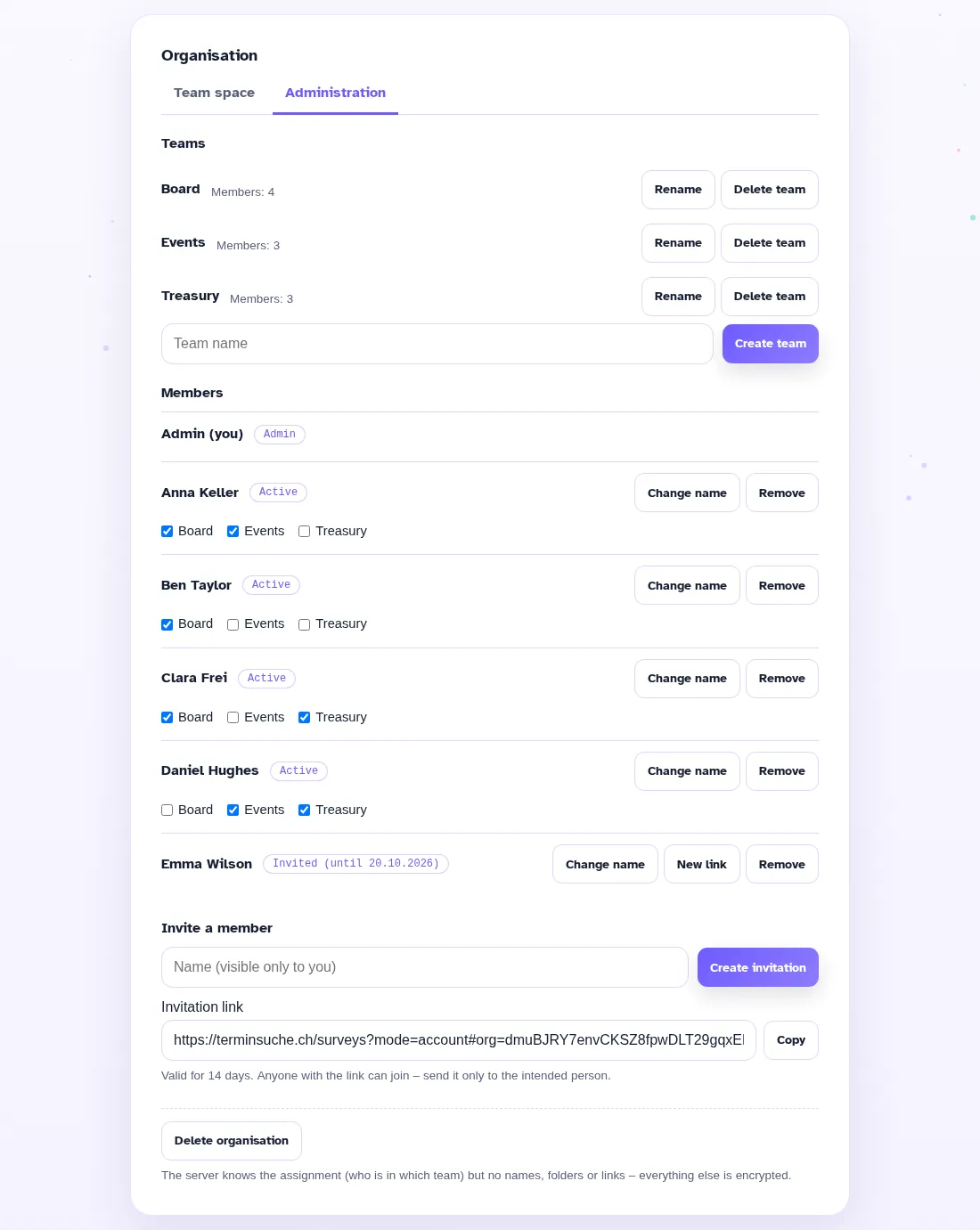
With the “Organisation” plan the admin creates teams. Each team only sees its own polls – everything stays encrypted in the browser.
Part of Premium – coming soon.
- In your account enter the “Organisation” licence key and choose “Set up organisation”.
- Create teams, e.g. Board, Events and Treasury.
- Invite a member: the admin creates an invite link (valid for 14 days, single use). The member opens it with their account.
- Assign members to one or more teams with the checkboxes. Anyone removed from a team loses access.
Team storage with folders
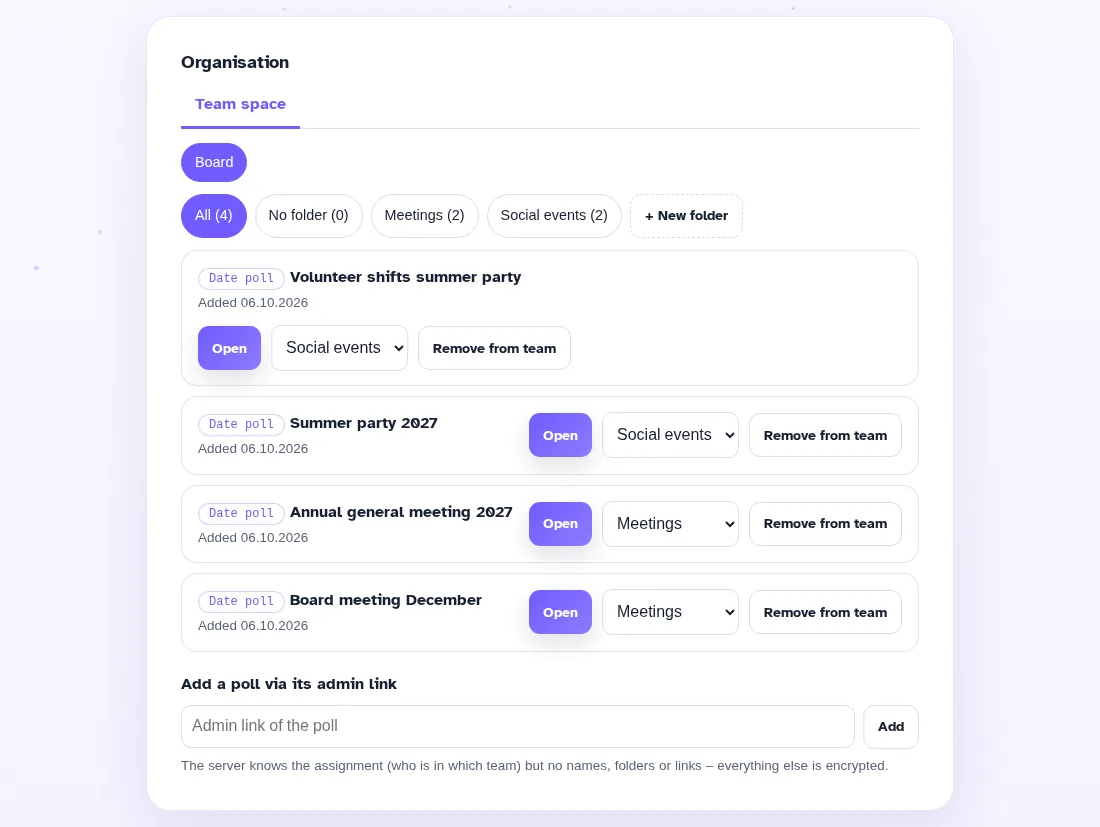
- Members only see the polls of their teams.
- Create, rename and delete folders; move polls between folders.
- After creating a poll, choose “Save to team”, then team and folder.
- Team names, folders, member names and links are encrypted – the server only knows random IDs.
Two-factor authentication (2FA)
Protect your account further: after your password, you confirm sign-in with a second method. This is optional. Your data stays encrypted exactly as before – 2FA is an extra gate in front of sign-in, and the key to your data remains your password.
- In your account, in the “Two-factor authentication” section, add a method: authenticator app (6-digit code) or passkey / security key (e.g. YubiKey).
- Keep the 10 recovery codes (single use). They are your way out if you lose your device. The recovery key does not bypass 2FA.
- Add several methods, e.g. an app and a passkey – this covers you when you change devices.