
Guide
Step by step to the result
Whether you are creating a survey or just want to vote – here is how it works.
Create a date poll
- Open terminsuche.ch/terminsuche and choose the type (dates, free text or list).
- Enter a title, optionally a description, and the options.
- Optional: add a location and duration. Dates and times can be typed in short form (7.7. or 750 for 07:50).
- Choose the retention period and create the poll.
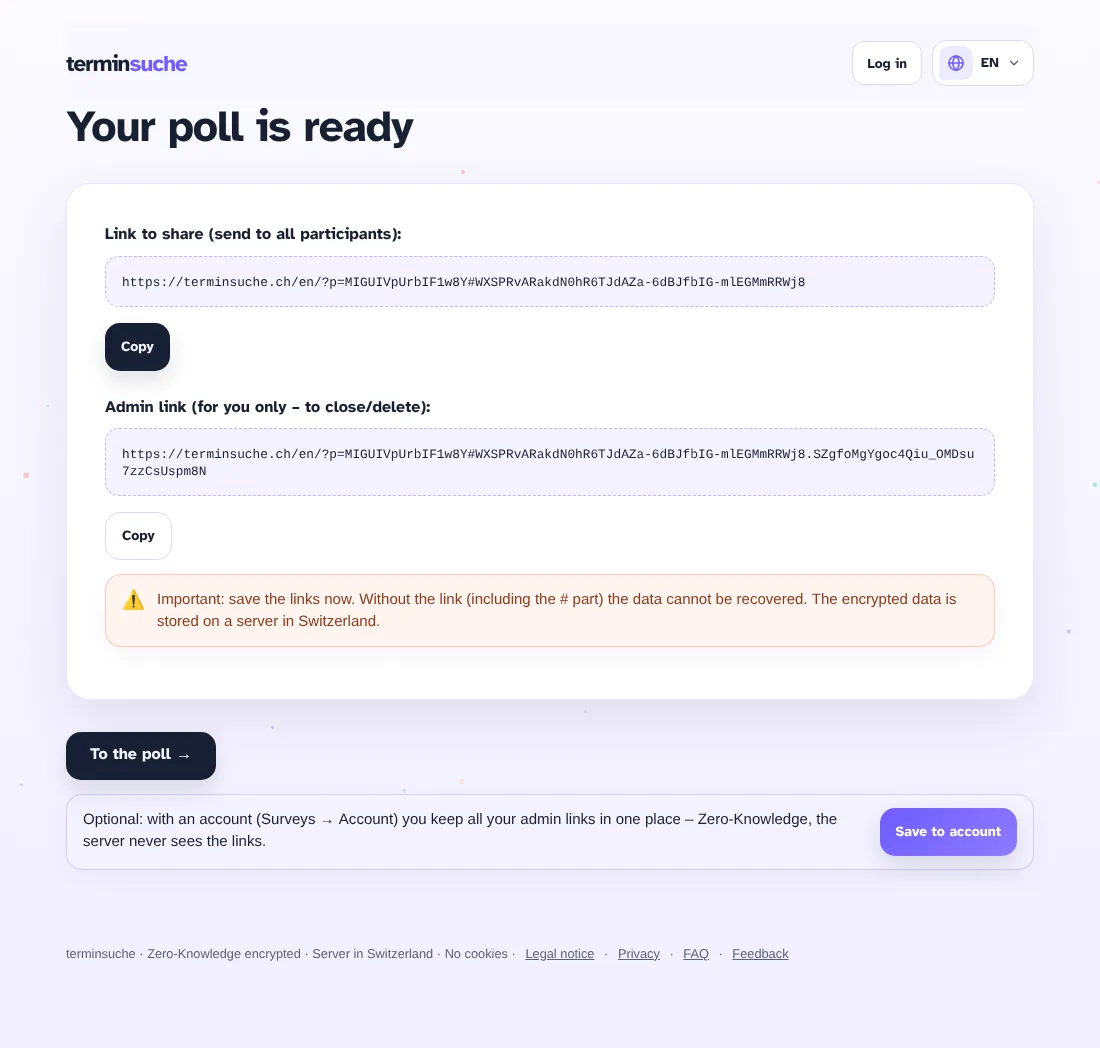
- Save the participant and admin links and send out the participant link.
Take part in a poll
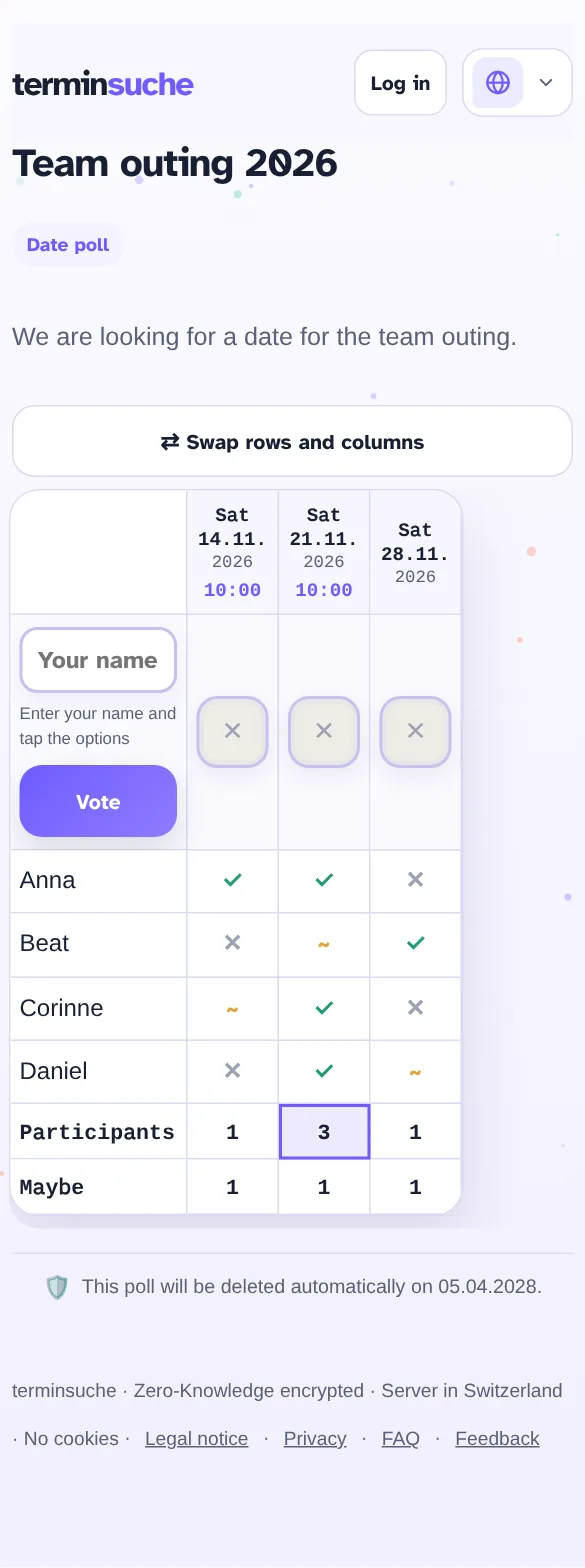
- Open the link you received.
- Enter your name.
- For each option, tap ✓ (works), ~ (maybe) or ✕ (doesn’t work) – for lists and free text you fill in the fields.
- Tap “Vote”. Done.
You don’t need an account.
Manage a poll
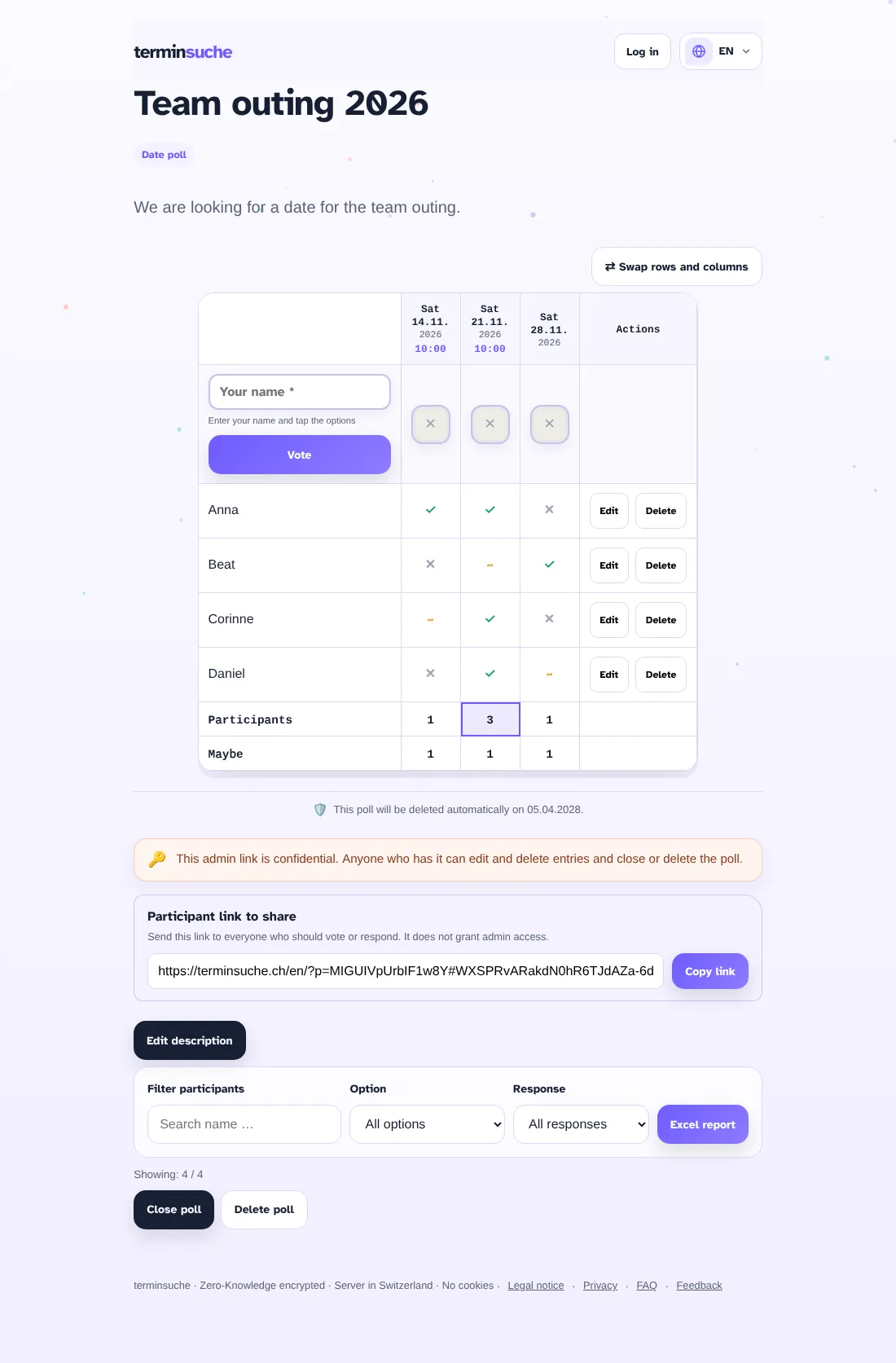
Open the admin link (it additionally contains the admin part after the key). There you can:
- Edit or delete individual votes
- Filter responses
- Export the result as an Excel file
- Save the result as a PDF or print it
- Close or delete the poll
Important: The admin link is confidential. Anyone who has it can change entries and delete the poll.
Working in a team
Part of Premium – coming soon.
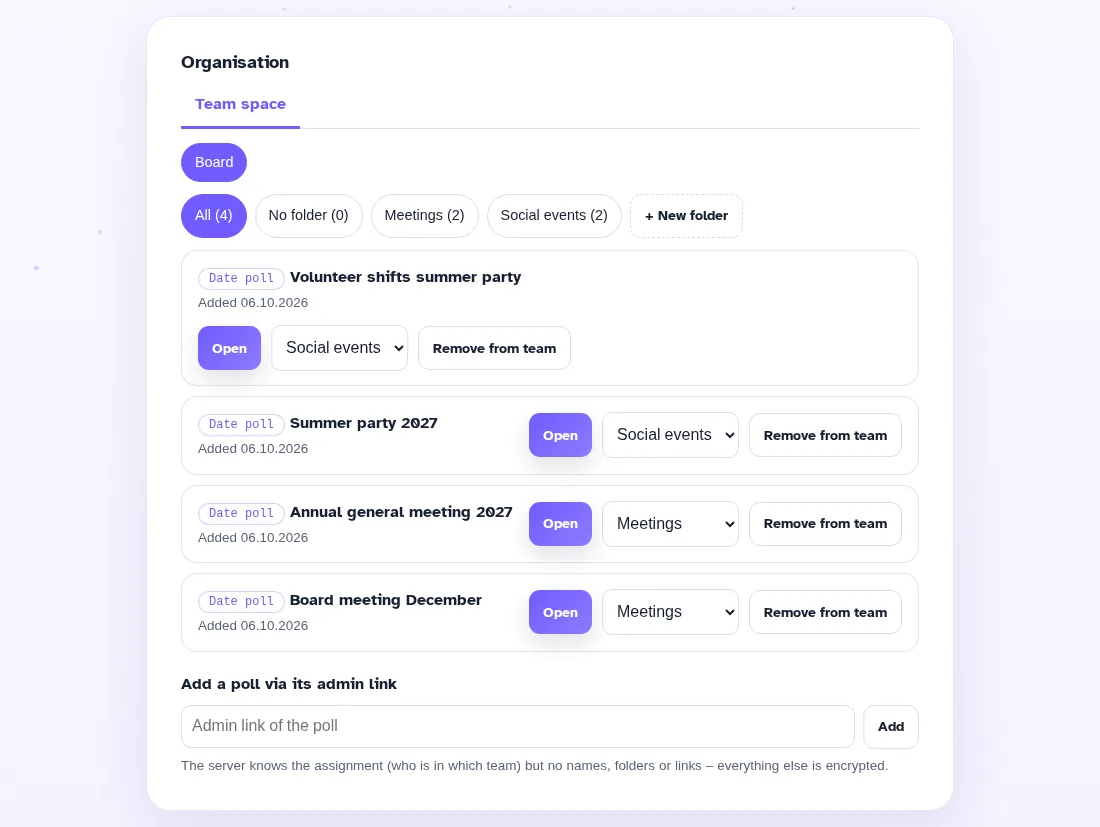
- With the “Organisation” plan the admin creates teams and invites members by link.
- After creating a poll, choose “Save to team”, then team and folder.
- Members open the poll in the team storage and only see the polls of their teams.
- If the admin requires 2FA, you set it up in your account. If you lose your device, the admin resets it.
You will find more answers in the FAQ. Something missing? Write to us via the feedback page.